
How to translate emails in Gmail on iPhone and iPad
If you read mail in more than one language on your phone, the annoying part is rarely the translation itself. It is the copying: select the text, leave Gmail, open a translator, paste, read, go back. This guide shows how to skip that and translate inside the Gmail app on iPhone and iPad.
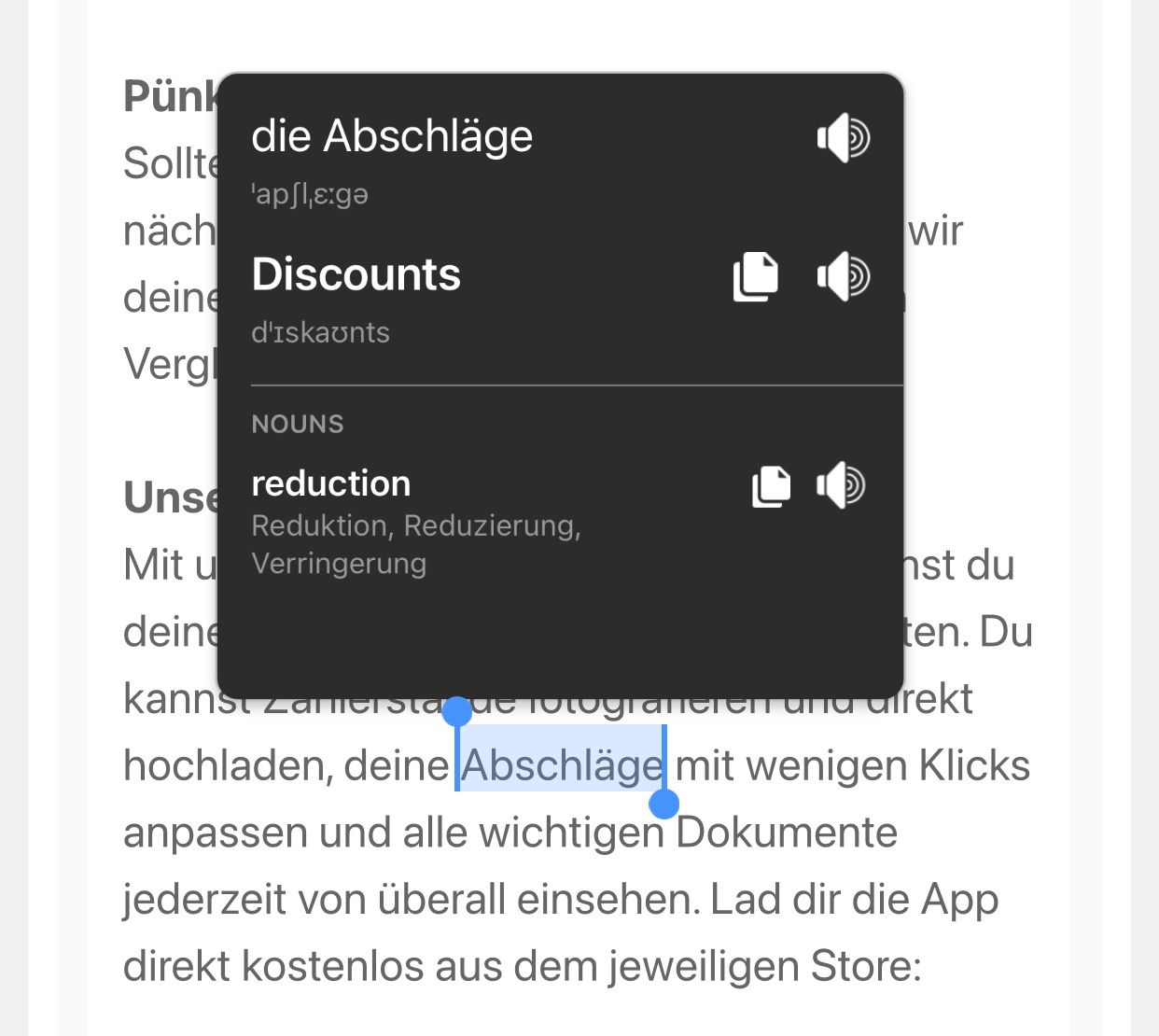
Install a translator that works inside other apps
Most translator apps expect you to come to them. Mate for iPhone and iPad works the other way round: it hooks into the iOS text-selection menu and the share sheet, so the translation appears on top of Gmail and you stay where you were.
It translates between 248 languages, shows pronunciation and phonetic transcription, and keeps anything you save in a Phrasebook that syncs to your other devices.
Option 1: the Translate button (iOS 18.4 and later)
Since iOS 18.4 you can choose which app handles the Translate item in the text-selection menu. Set it to Mate once and it works in Gmail, Mail, Safari, Messages and nearly everything else.
- Open Mate's Settings, go to Integrations, and tap Default Translator.
- Tap Open Settings, then Default Translation App, and choose Mate.
Now, in Gmail: press and hold on the message text, drag the handles over the part you want, or tap Select All for the whole message, then tap Translate. Mate opens with the translation. Swipe it away and you are back in the email.
Option 2: the share sheet (any iOS version)
- Select the text in the email.
- Tap Share in the selection menu.
- Choose Translate with Mate.
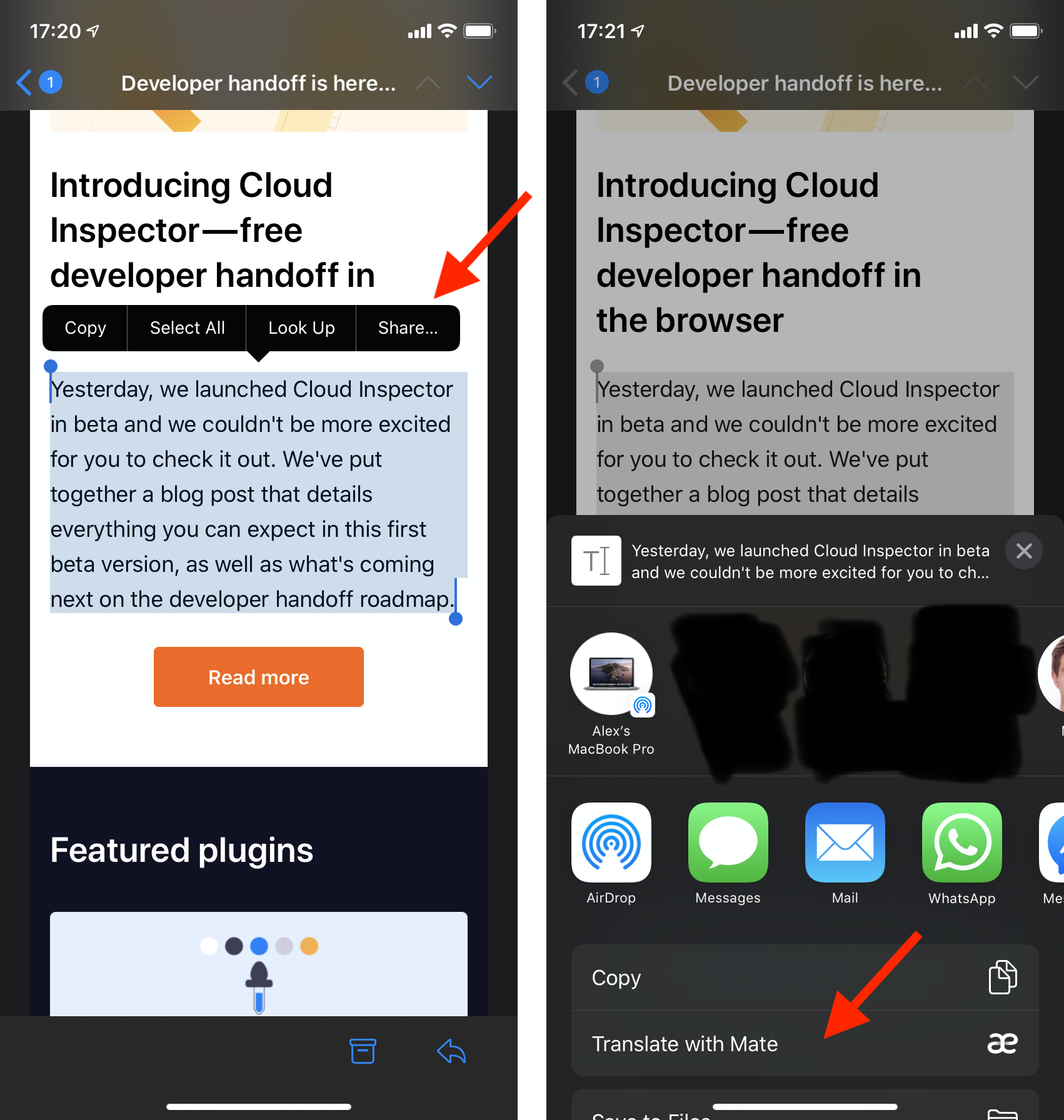
If Translate with Mate is not near the top, scroll to the end of the actions, tap Edit Actions, find Mate and add it to your favourites. After that it is always there. There is more on this in "Translate with Mate" is missing from the share sheet.
Writing a reply in the other language
Open Mate, type your reply in your own language, and switch the translation style to Advanced or AI before you copy it. For business mail also set Tone to formal, so German comes out with "Sie" rather than "du" and French with "vous" rather than "tu". Translate the whole reply in one go rather than sentence by sentence; a single pass keeps the register consistent.
Then copy the translation and paste it into Gmail. On iOS 18.4 and later you can also write the reply, select it, tap Translate, and use Replace selected text to swap it in place.
Advanced, AI and the tone control are part of Mate Pro. The Basic style is free and covers every language.
A few things worth knowing
- Select the body, not the thread. Select All grabs signatures and quoted replies too. Selecting just the message you care about gives a cleaner translation.
- Attachments. Open a PDF attachment, select text in it, and use the same Translate or Share route. See Translate PDFs on iPhone and iPad.
- Screenshots and images. If the text cannot be selected, open Mate, switch to Camera, and pick the image from your library.
- Offline. With languages downloaded in advance, Mate translates on the device with no connection, which is useful on a plane.
The same trick works elsewhere
Once Mate is set up, the same two routes work in every app on your phone: Safari, Messages, Notes, WhatsApp, Instagram. The full list is in Translate text in any app on iPhone and iPad.
On a Mac the equivalent is Services > Translate with Mate Translate from the right-click menu in Apple Mail, Outlook, Spark or any other mail app, or Option+Shift+T after copying. One Mate Pro subscription covers the Mac app, the iPhone and iPad app and the browser extensions, and History and Phrasebook sync between them.
What about privacy?
Mate sends the text you translate to a translation engine and nothing else. It does not build a profile of you, and your History and Phrasebook stay on the device unless you turn on sync. The details are in What data does Mate send and store?